Configure the Member Directory Module
DNN Version: 09.02.00
12/08/2019 • 4 minutes to read
Contributors

12/08/2019
• 4 minutes to read
• Contributors
In the Member Directory module, you can configure:
- the HTML templates used to display member information,
- how the list is filtered and sorted,
- how users can search for members in the list, and
- how the list is divided into pages.
Steps
Go to the page containing the module to configure. Edit the page.
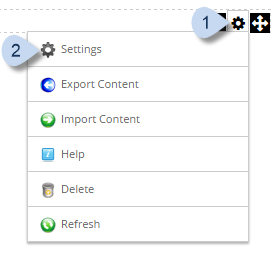
In the module's action menu bar, go to Manage (gear icon) > Settings.
Go to the Member Directory Settings tab.
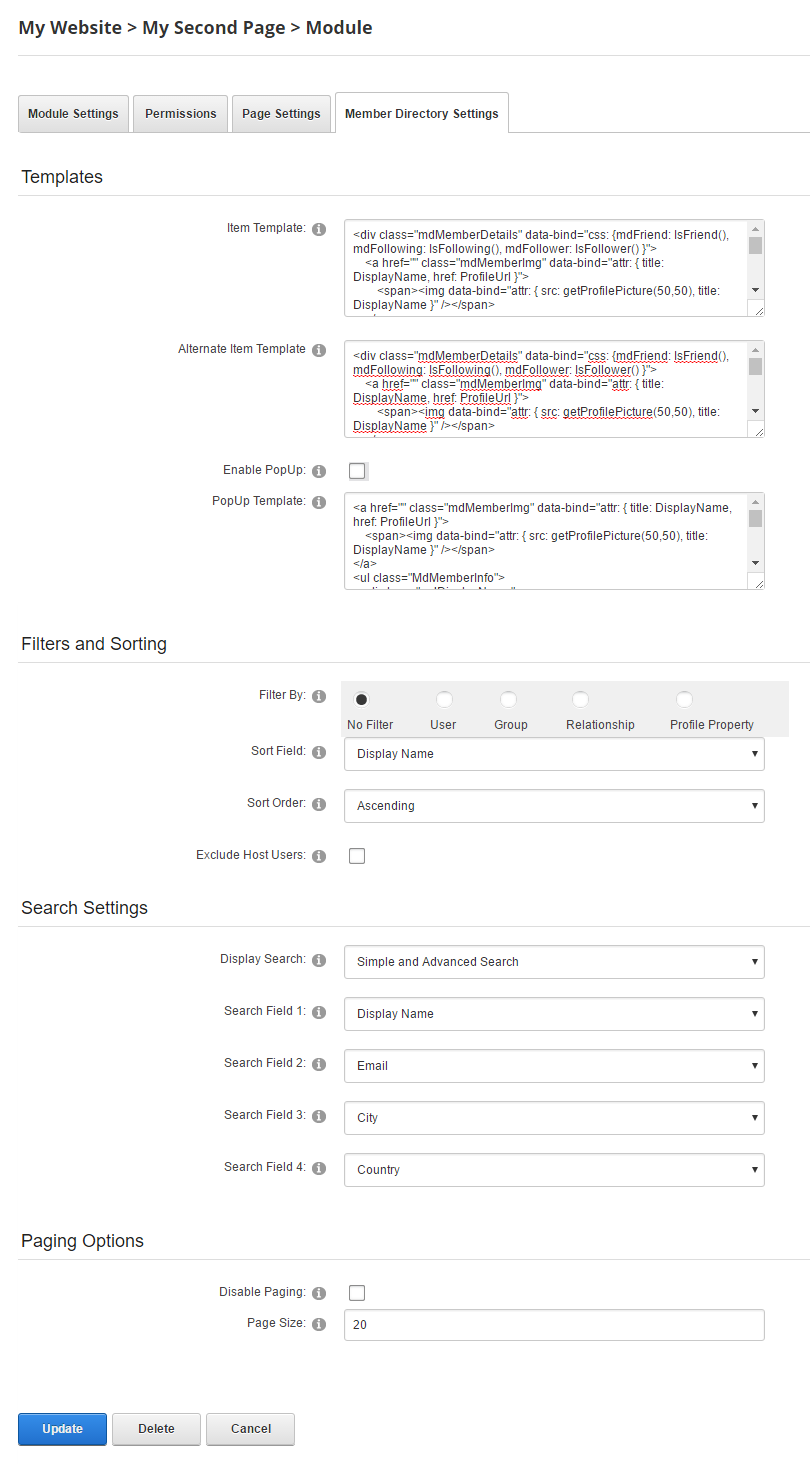
| Templates | |
|---|---|
| Item Template | The HTML template used to display the first and every other (odd-numbered) item in the directory. |
| Alternate Item Template | The HTML template used to display the second and every other (even-numbered) item in the directory. Leave this blank to use the Item Template for all members. |
| Enable PopUp | If checked, the member details are displayed in a pop-up window when the user hovers over the member's listing. |
| PopUp Template | The HTML template used to display a member's details in a pop-up window. |
| Filters and Sorting | |
|---|---|
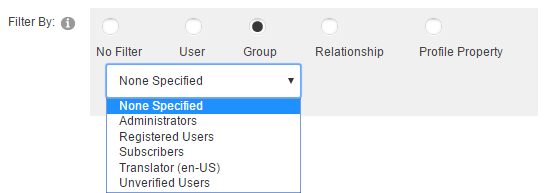
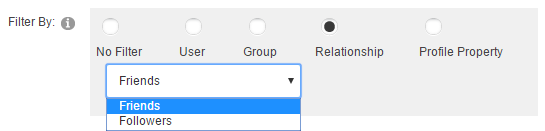
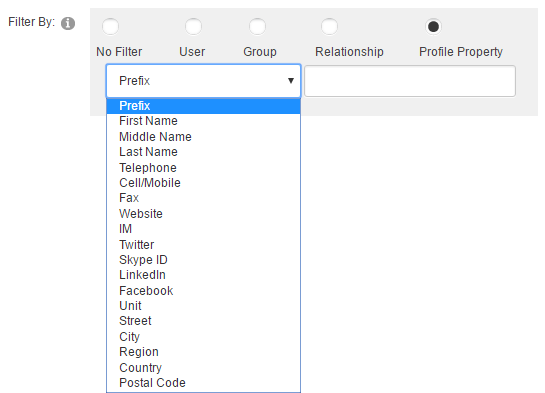
| Filter By |
|
| Sort Field Sort List By |
Sorts the list based on the selected field. |
| Sort Order Sort Direction |
Sorts the list in ascending or descending order. |
| Exclude Host Users | If checked, hosts are excluded from the resulting list. |
Tip
Checking this option is useful for security. By hiding users with maximum permissions, you reduce the risk of hackers targeting those accounts or leveraging the names of those users in social engineering attacks.
| Search Settings | |||
|---|---|---|---|
| Display Search |
|
Search Field 1 Search Field 2 Search Field 3 Search Field 4 |
The fields to be used in the Advanced Search. |
| Paging Options | |
|---|---|
| Disable Paging | If checked, only the first page of the results is displayed and the Load more button is hidden. |
| Page Size | The number of items to display in each result page. (1 — 100) |
Example
- To list the current user's friends or followers,
- Under Filters and Sorting, choose Relationship.
- In the dropdown, choose Friends or Followers.
- To add the current user's abbreviated profile on a page, such as on a sidebar,
- Under Filters and Sorting, choose User.
- Under Search Settings, set Display Search to None.
- To allow the user to search for other members in the entire site,
- Under Filters and Sorting, choose No Filter.
- Under Search Settings, set Display Search to Simple Search or Simple and Advanced Search.
- Choose four fields that you allow the users to search on.
- To list the members of a group,
- Under Filters and Sorting, choose Group.
- In the dropdown, choose the social group or role group.
- To list members located in a specific geographical area.
- Under Filters and Sorting, choose Profile Property.
- In the dropdown, choose a location field, such as City, Region, or Postal Code.
- In the text field, enter the value to match for the selected property.