Configure the Social Groups Module
DNN Version: 09.02.00
12/08/2019 • 2 minutes to read
Contributors

12/08/2019
• 2 minutes to read
• Contributors
You need two pages for social groups.
| Purpose | Module View Mode | Group View Page |
|---|---|---|
| to list the groups | List | The other page |
| to view a selected group's details | View | (not applicable) |
Important
Both pages must grant the same permissions to users. Otherwise, users might not be able to join the group, for example.
Steps
Go to the page containing the module to configure. Edit the page.
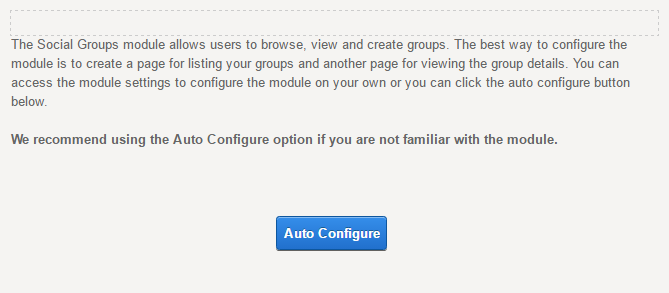
(Recommended) Click/Tap the Autoconfigure button.
Tip
Even if you plan to customize the settings, run the autoconfiguration first to initialize the settings.
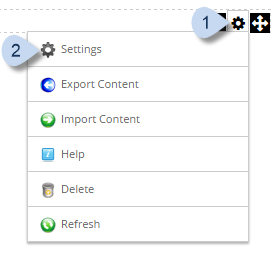
In the module's action menu bar, go to Manage (gear icon) > Settings.
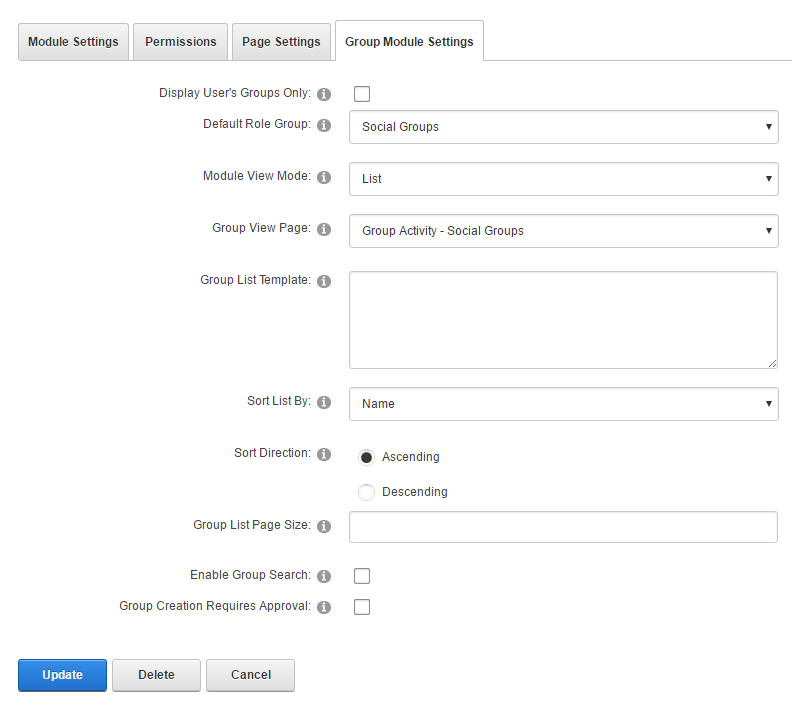
Go to the Group Module Settings tab.
Important
In the target page, the Social Groups module instance must be configured with Module View Mode set to View.
Field Description Display User's Groups Only If checked, displays only the groups that the current user belongs to. Default Role Group The role group that is displayed by default. Module View Mode The mode for the current module instance. - List. Choose this setting for the page that lists the groups.
- View. Choose this setting for the page that displays the details of the selected group.
Group View Page The page that displays the details of the selected group. Group List Template
Group View TemplateThe custom HTML template used to display the group list or details. You can use the following tokens in the template: - [groupitem:GroupName]
- [groupitem:GroupDescription]
- [groupitem:PhotoURL]
- [groupviewurl]
Sort Field
Sort List BySorts the list based on the selected field. Sort Order
Sort DirectionSorts the list in ascending or descending order. Group List Page Size The number of items to initially display, and the number of additional items to display when the Get More button is clicked/tapped. Enable Group Search If checked, provides case-insensitive search by group name. Group Creation Requires Approval If checked, a user with Moderators permissions or an administrator must approve new groups.