Delete a File Extension from Included or Excluded List for Crawling
DNN Version: 09.02.00
12/08/2019 • 1 minute to read
Contributors

12/08/2019
• 1 minute to read
• Contributors
Note: You can choose only from the extensions that are included in the Allowable File Extensions list in the Security settings (Persona Bar > Settings > Security > More > More Security Settings).
Prerequisites
- An administrator account for the site. Administrators have full permissions to the specific site.
Steps
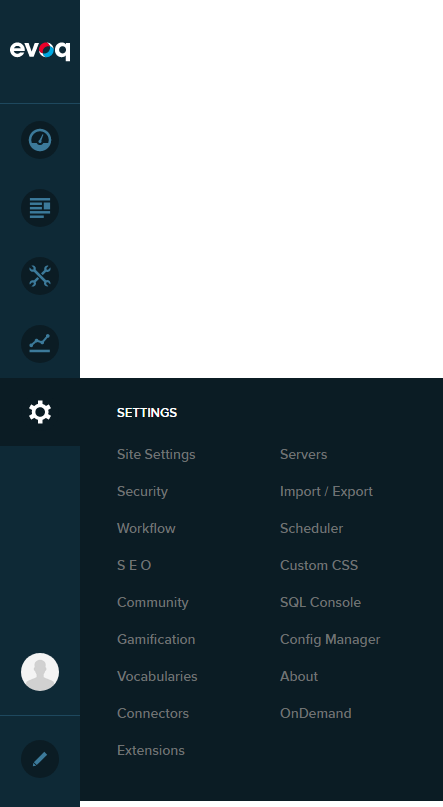
Go to Persona Bar > Settings > Site Settings.
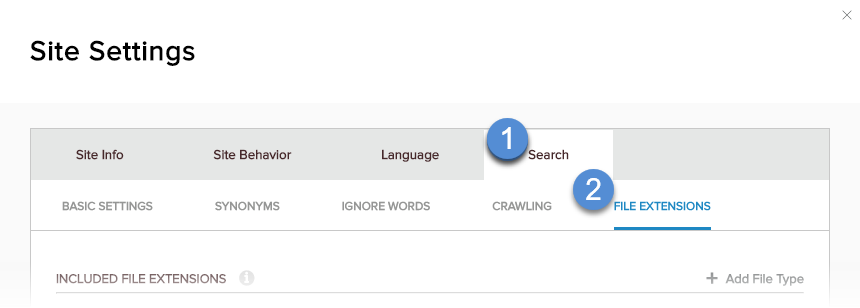
Go to the Search tab, and then the File Extensions subtab.
In Included File Extensions or Excluded File Extensions, find the file extension to delete and click/tap its trash icon.

Confirm.