Add a Site Alias
DNN Version: 09.02.00
12/08/2019 • 1 minute to read
Contributors

12/08/2019
• 1 minute to read
• Contributors
Prerequisites
- A host / super user account. Hosts have full permissions to all sites in the DNN instance.
Steps
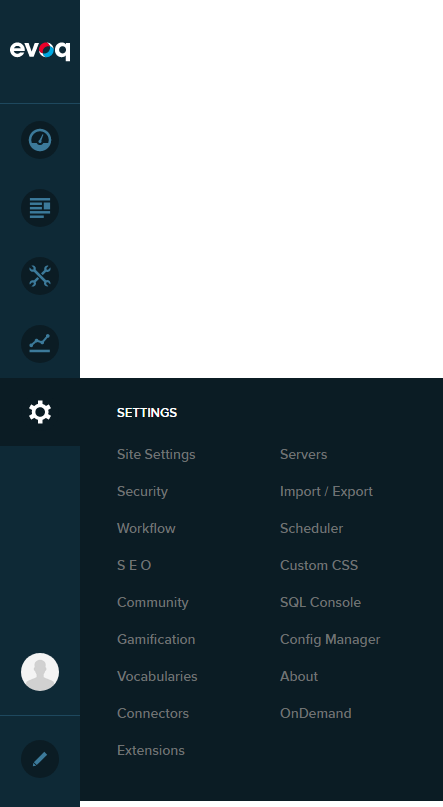
Go to Persona Bar > Settings > Site Settings.
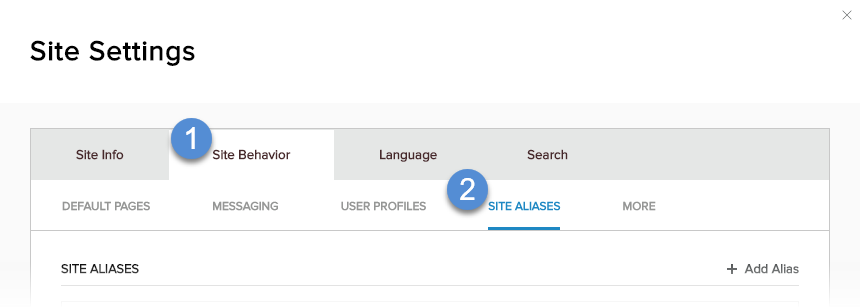
Go to the Site Behavior tab, and then the Site Aliases subtab.
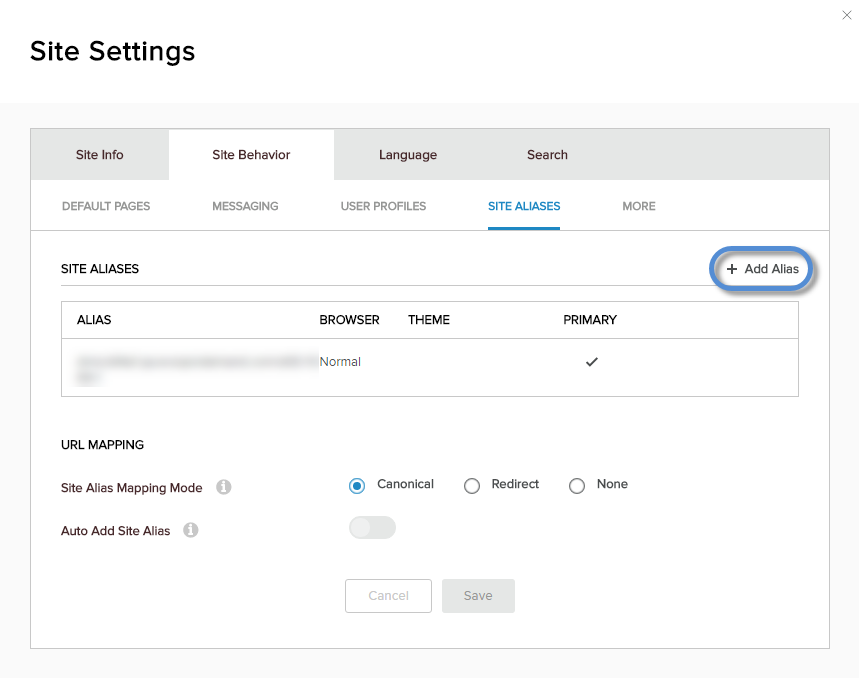
Click/Tap + Add Alias.
Configure the properties of the site alias.
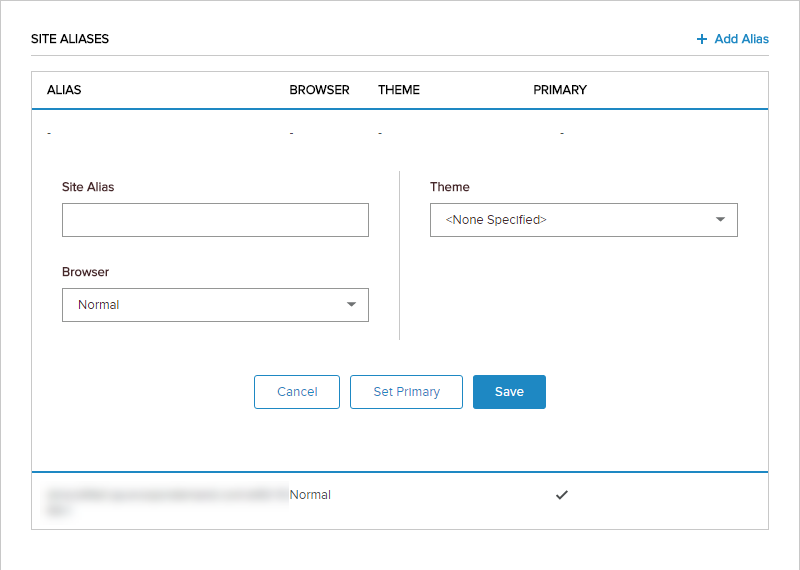
Field Description Site Alias The alternative URL (without the protocol) which can be used to access the same site. Browser - Normal. If the site alias is intended for normal web browsers.
- Mobile. If the site alias is intended for mobile devices.
Theme The site theme to use if the site is accessed with this alias.