Configure URL Mapping for Site Aliases
DNN Version: 09.02.00
12/08/2019 • 1 minute to read
Contributors

12/08/2019
• 1 minute to read
• Contributors
Prerequisites
- A host / super user account. Hosts have full permissions to all sites in the DNN instance.
Steps
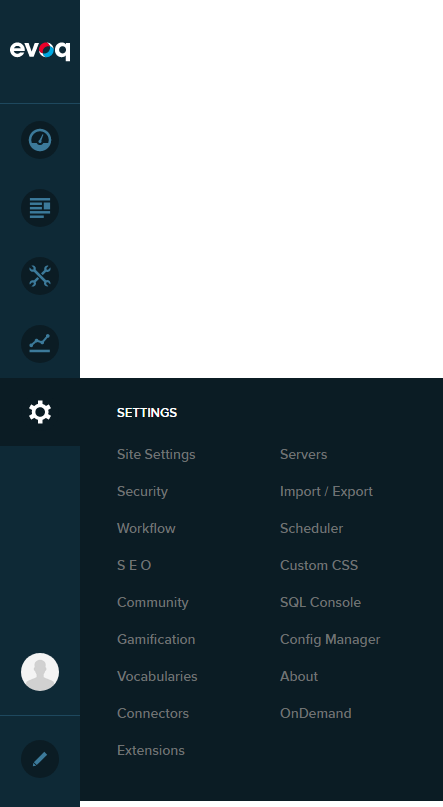
Go to Persona Bar > Settings > Site Settings.
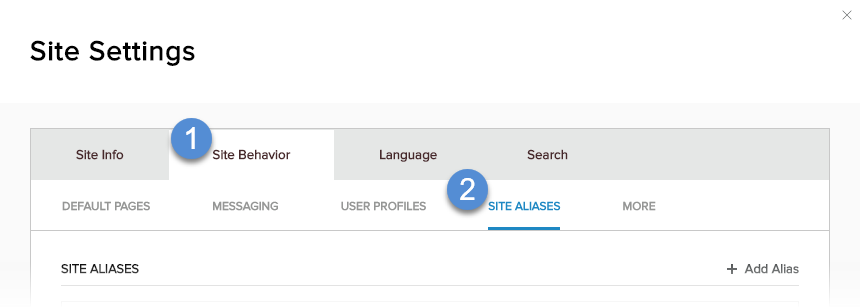
Go to the Site Behavior tab, and then the Site Aliases subtab.
Select the Site Alias Mapping Mode.
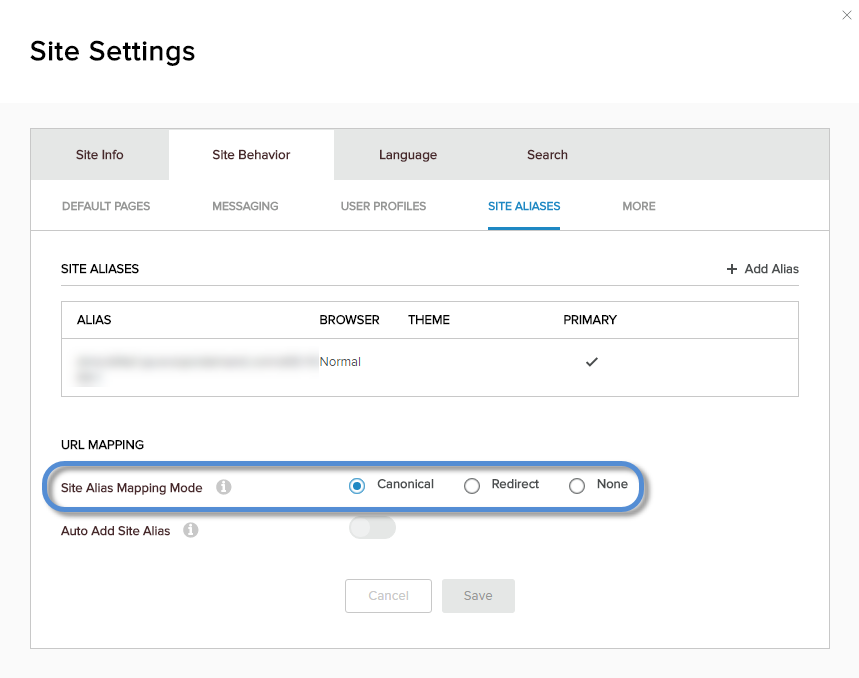
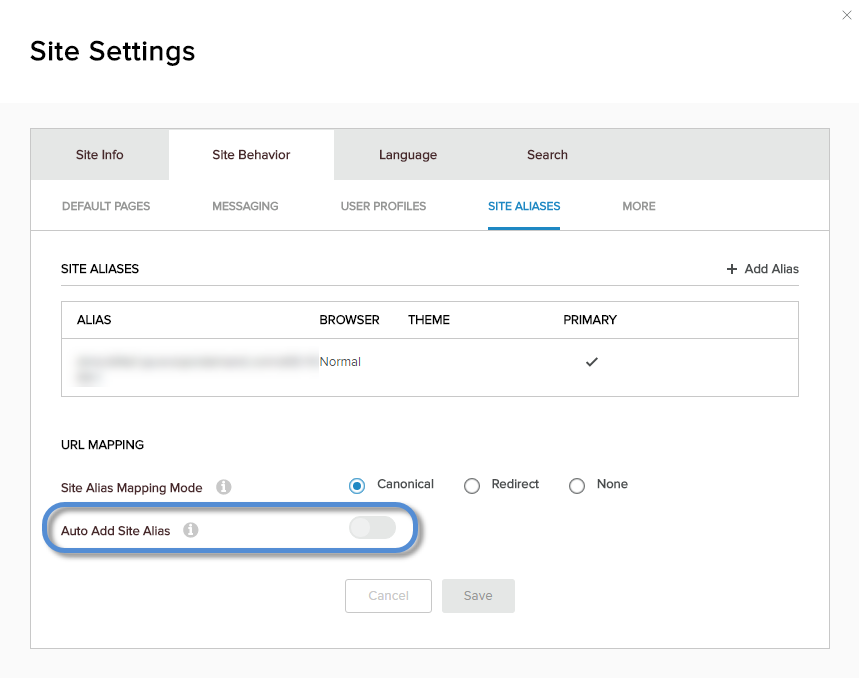
Option Description Canonical Recommended for SEO. Most useful when a page's content is dynamic or if the page contains a list that is split into multiple pages. Redirect Calls to non-primary site aliases are redirected to the primary site alias. The user sees the primary site alias in the browser's address field. None Site aliases are not mapped to any other site alias. Warning: This option can negatively affect your SEO score. (Optional) If available, enable Auto Add Site Alias.
This option is available if you have only one site in the DNN installation. If enabled, DNN automatically extracts the site alias from the original page request and adds it to the list of aliases.
Warning
Enabling this setting can be a security risk.